Setting Up Your Account
Overview
You’ll access the platform via an invitation email, create your password, and then sign in at your site’s admin URL.
Before you begin
- Have access to the email address that was invited.
- Use a modern browser (Chrome, Edge, Firefox, Safari).
- If you use a company inbox, ensure external emails aren’t blocked.
Step-by-step
Step 1:
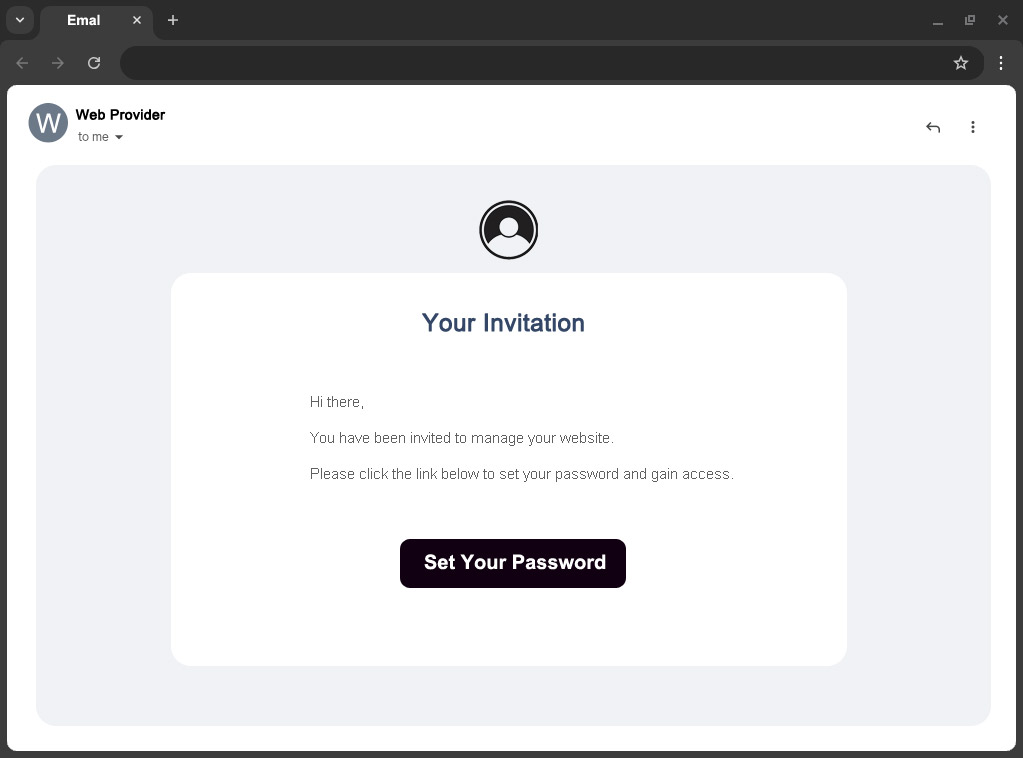
Open your invitation email
- Look for an email inviting you to set up your account.
- Note: Check Spam/Junk if you don’t see it. Mark it Not spam and add the sender to your contacts to prevent future emails going to junk.
Step 2:
Click the “Set Your Password” link
- The email includes a secure link to create your password.
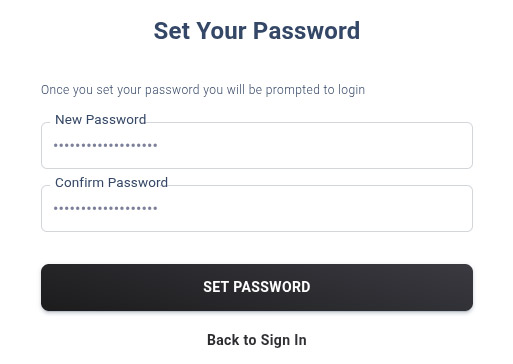
- Click it to open the setup page in your browser.
Step 3:
Create your password
- Enter a strong, unique password and confirm it.
- Tip: Use 12+ characters with a mix of letters, numbers, and symbols.
Step 4:
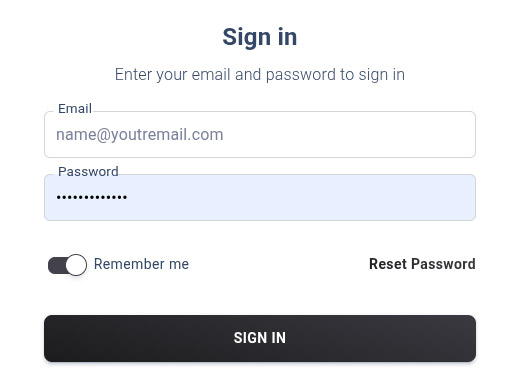
Sign in to the platform
-
After setting your password, you’ll be prompted to sign in.
-
Use your email (the one that was invited) and your new password.
Step 5:
Bookmark your admin URL for next time
-
You can always return to your dashboard at: https://<yourwebsite>/admin
- Replace <yourwebsite> with your domain.
- Consider bookmarking it for quick access.